How to Use Deep Live Cam with Discord Group Voice Calls
How to Use Deep Live Cam with Discord Group Voice Calls
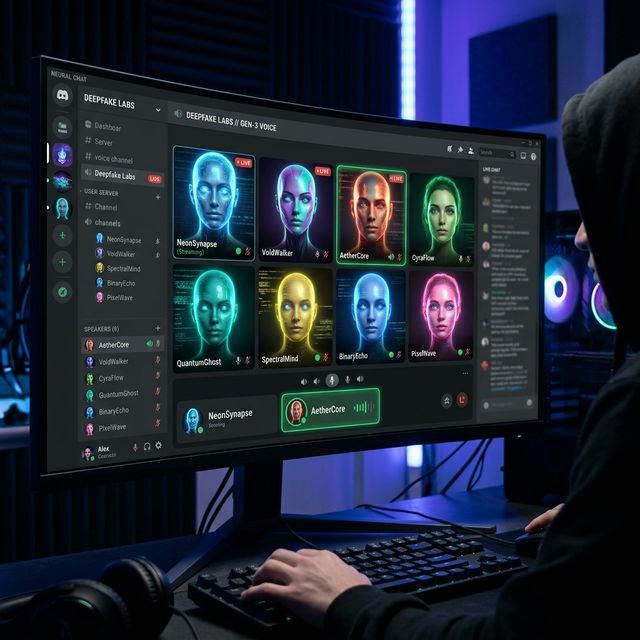
Bringing high-end generative AI into casual group hangouts is the ultimate digital flex. Whether you are running a late-night Dungeons & Dragons campaign and want to literally wear the face of your dungeon master persona, or you just want to troll your gaming lobby by appearing as Ryan Gosling, connecting Deep Live Cam to Discord is a wildly entertaining feature.
Bypassing Discord's Camera Protocols
Unlike OBS Studio, Discord is highly restrictive about video input sources natively. If you simply turn on "Virtual Camera" inside Deep Live Cam, Discord might display a blank grey screen or claim the camera is in use by another application. Discord aggressively combats virtual inputs to prevent users from streaming pirated movies through the camera feed.
The OBS Passthrough Method
To safely structure your pipeline and ensure Discord sees proper video frames, do not route Deep Live Cam directly into Discord. Instead, use the OBS Passthrough technique:
- Start Deep Live Cam and feed it into OBS Studio via the standard virtual camera source.
- Within OBS, click the "Start Virtual Camera" button located in the bottom right corner of the OBS interface.
- Open Discord Settings -> Voice & Video.
- Under "Camera," select "OBS Virtual Camera."
By using OBS as a digital middleman, Discord interprets the feed as a deeply stable, standard video output. You now have complete control to inject AI face swaps, add text overlays, or quickly disable the effect directly from the OBS interface while your Discord friends watch in confusion and awe.


